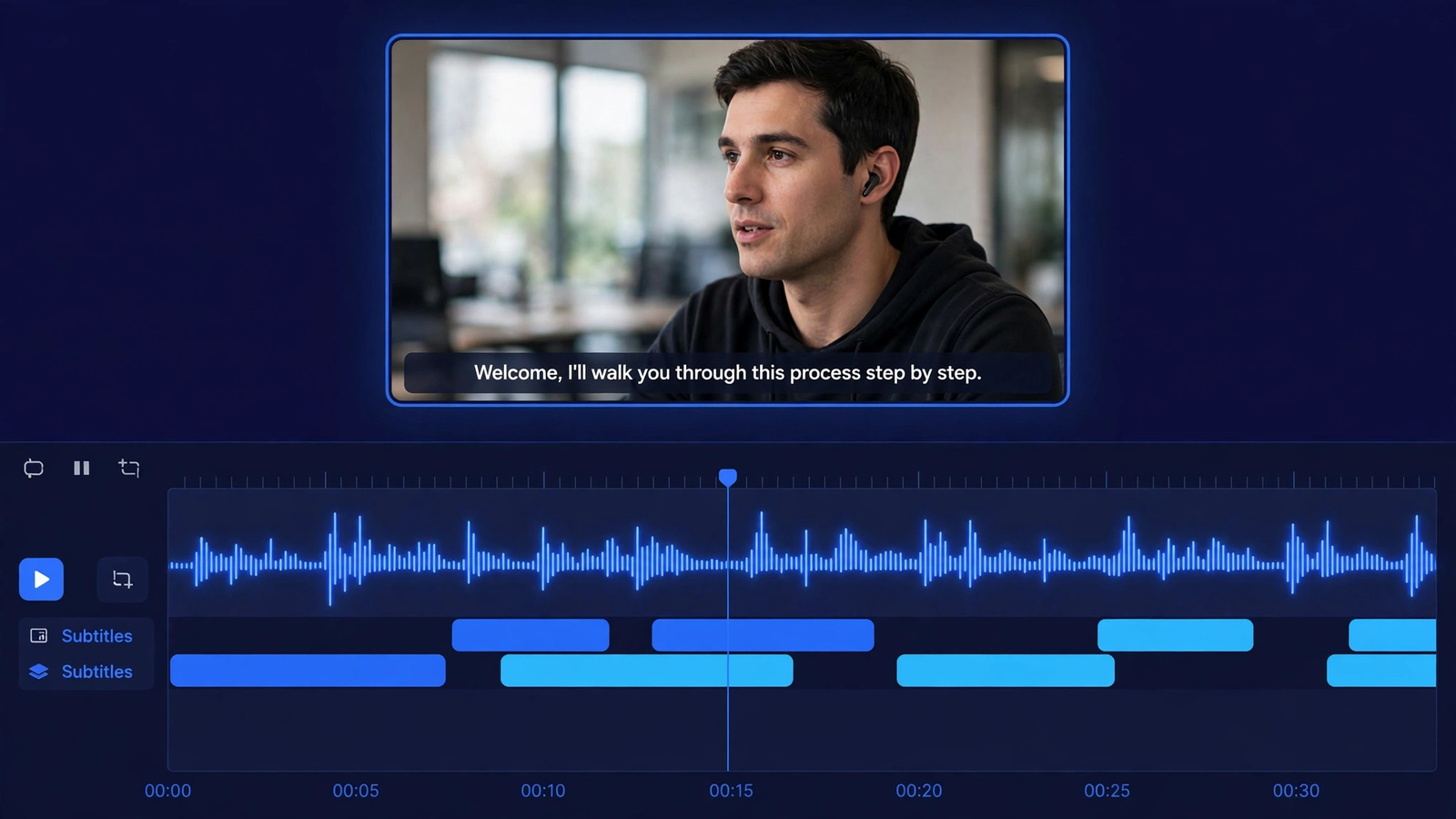
Every video you publish needs subtitles. A free AI subtitle generator creates them in minutes. It turns speech into timed text, so you save hours of typing.
This matters for creators, marketers, small businesses, and YouTubers, since most social video is watched with the sound off. However, “free” often hides a catch: watermarks, 10-minute monthly caps, or download fees.
We checked the real free plans on official pricing pages on November 12, 2026. The best overall pick is Microsoft Clipchamp. It offers free AI subtitles with no stated minute limit, 1080p exports, no watermark, and an SRT download.
Quick Picks
- Best overall: Microsoft Clipchamp — free subtitles, no minute limit, 1080p, no watermark, SRT download.
- Best for styled social clips: Kapwing — great styles, watermarked 720p, 4-minute cap.
- Best for testing a full editor: VEED — 10 subtitle minutes/month, watermarked 720p.
- Best for YouTube creators: YouTube Studio — free captions for your own uploads.
- Best for subtitle files: TurboScribe — 3 free transcripts/day, 30 minutes each, SRT/VTT.
- Best for podcasts: Descript — edit by transcript, 1 hour/month, watermarked 720p.
- Best for designed videos: Canva — free styled captions, no SRT download.
- Best multilingual test: Zeemo — 95 languages, 1-minute free cap.
Burned-In Subtitles or an SRT File? Pick This First
Before you pick a tool, decide: burned-in words, or a separate subtitle file?
Burned-in subtitles are part of the picture and work well for TikTok, Reels, and Shorts. However, viewers cannot turn them off, and typos need a fresh export.
An SRT file is a small text file with words and timings. Viewers can turn it on or off, and you can fix it later. As a result, SRT files suit YouTube, courses, and client work. Clipchamp, YouTube Studio, and TurboScribe give you one free.
Beware trials in disguise: Submagic, Happy Scribe, and Sonix offer trials, not free plans. CapCut’s own pages disagree on free captions, so we excluded it too.
8 Best Free AI Subtitle Generator Tools
1. Microsoft Clipchamp — Best Overall
Clipchamp is Microsoft’s video editor for browser and Windows 11. You sign in with a free Microsoft account. No payment is needed.
Its autocaptions are free for all users, with no stated limit. Exports are unlimited, up to 1080p, with no watermark. You can also download an SRT file. However, SRT is the only format, and only one language is allowed per video. There are no animated word-by-word styles, and 4K export needs Microsoft 365.
Best for: creators and small businesses who want clean subtitles plus a reusable SRT file.
Pros:
- Free subtitles, no stated minute limit
- 1080p exports, no watermark
- SRT download included
Cons:
- No animated word-by-word styles
- SRT only, no VTT download
See Clipchamp’s pricing and subtitle page.
2. Kapwing — Best for Styled Social Clips
Kapwing is a browser video editor popular with creators and marketing teams, with modern caption styles and an easy editor.
The free plan gives 10 credits, covering up to 10 minutes of auto-subtitling and 5 minutes of auto-translation, with SRT and VTT downloads listed. However, free exports carry a watermark, stop at 720p and 4 minutes each, and face a 30-minute monthly export limit. Free projects last only 3 days.
Best for: creators testing styled captions on short social clips before paying.
Pros:
- Modern caption styles, easy editor
- SRT/VTT downloads listed
- No trial clock
Cons:
- Watermark on every free export
- 4-minute, 720p cap
3. VEED — Best for Testing a Full Editor
VEED is a browser editor with a full timeline, screen recorder, and AI tools for social videos, ads, and training clips.
The free plan gives 10 minutes of subtitles a month, unlimited exports, and 50 AI credits a month. However, exports carry a watermark, stop at 720p, and run no longer than 10 minutes each. Downloading SRT, VTT, or TXT files needs a Pro plan or higher. Paid plans include unlimited subtitles within a 50-hour monthly fair-use limit.
Best for: small teams testing a complete browser editor.
Pros:
- Full editor with dynamic subtitle styles
- Unlimited exports
- No card needed
Cons:
- Watermarked 720p exports
- SRT download needs a paid plan
See VEED’s pricing page and plans file.
4. YouTube Studio — Best for YouTube Creators
YouTube Studio is the free control panel for your channel. It creates automatic captions for most uploads, which you can review, fix, and download.
There is no paid tier and no published minute cap. You need only a Google account and your own channel. Captions are a toggleable track, so there is no watermark. To edit, open Subtitles, choose “Duplicate and edit,” and publish. To download, use Options > “Download subtitles.” However, this works only for your own videos, and accuracy varies with accents and noise. Automatic captions cover 60+ languages.
Best for: YouTubers who want a free, editable caption draft plus a file.
Pros:
- Completely free, no minute cap
- Edit and download caption files
- 60+ languages
Cons:
- Only for your own channel’s videos
- Accuracy varies, proofreading needed
See Google’s help page on editing captions
5. TurboScribe — Best for Subtitle Files
TurboScribe is a browser transcription service built on OpenAI’s Whisper. It turns uploads into text, with no video editor.
The free plan gives 3 transcripts a day, up to 30 minutes each, one file at a time, with SRT and VTT downloads. No card is needed. However, free files wait in a lower-priority queue, and unused transcripts do not carry over. The Unlimited plan costs $10 a month billed yearly and allows files up to 10 hours.
Best for: podcasters and editors who need SRT or VTT files, without a full editor.
Pros:
- 3 free transcripts a day, 30 minutes each
- SRT/VTT downloads
- Cheap upgrade at $10/month yearly
Cons:
- 30-minute file cap
- No editor, no burned-in captions
See TurboScribe’s pricing page
6. Descript — Best for Podcasts and Long-Form Video
Descript lets you edit audio and video by editing its text: delete a sentence, and it cuts the media too. It suits podcasters and course creators.
The free plan gives 60 media minutes a month and 100 one-time AI credits. It transcribes in 25 languages, and dynamic captions are unlimited. However, free exports stop at 720p with a watermark, and uploads stop at 1 GB. Hobbyist ($16/person/month billed annually) raises media to 10 hours with watermark-free 1080p exports.
Best for: podcasters editing by transcript within a 1-hour monthly cap.
Pros:
- Edit by text, dynamic captions included
- 25 languages, speaker detection
- No card needed
Cons:
- Only 60 media minutes a month
- Watermarked 720p exports
7. Canva — Best for Designed Social Videos
Canva is a design platform with a built-in video editor. Add a video, open Captions, and click Generate captions.
Canva says you can add subtitles “for free, as often as you need.” Captions are editable, with animation and styling, and its video translator covers 100+ languages. However, the subtitles page lists no SRT or VTT download. Downloads are MP4 only. In addition, free exports stay clean only when every element is free, and one Pro element can trigger a watermark. Free videos stop at 30 minutes.
Best for: marketers who want styled, burned-in captions and do not need an SRT file.
Pros:
- Free captions, no minute limit stated
- Strong styling and animation
- 100+ language translation
Cons:
- No SRT/VTT download listed
- Pro elements can trigger a watermark
8. Zeemo — Best for a Quick Multilingual Test
Zeemo is a captioning tool for web, iOS, and Android, built for short-form video, with templates and styled exports for TikTok, Shorts, and Reels.
The free plan gives 120 credits a year. Videos stop at 1 minute and 200 MB. Exports stop at 720p, and files are stored for 3 days. Captions cover 95 languages, and translation covers 124+. However, the pricing page did not clearly show free-plan subtitle downloads, and the watermark rule is unclear. Therefore, check the export screen first. Pro costs $9.99 a month, or $8 a month billed yearly.
Best for: testing multilingual captions on one clip under 1 minute.
Pros:
- 95 caption languages, 124+ for translation
- Templates for short-form video
- Web, iOS, and Android
Cons:
- 1-minute free video cap
- Watermark and file rules unclear
How to Choose the Right Free AI Subtitle Generator
- File or burned-in? If you need an SRT or VTT file, pick Clipchamp, YouTube Studio, or TurboScribe.
- Watermark? Kapwing, VEED, and Descript watermark free exports. Clipchamp does not.
- Minutes? Kapwing and VEED cap free subtitles at 10 minutes. Clipchamp states no minute limit.
- Video length? Kapwing stops at 4 minutes, Zeemo at 1 minute, VEED at 10 minutes per export.
- Languages? Clipchamp lists 100+ languages, one per video. Descript covers 25. Test yours first.
- Card? Every tool needs an account, but none of these free plans asked for a card.
How to Add AI Subtitles to a Video for Free
Follow these steps in Clipchamp, our best overall pick.
Step 1: Sign in with a free Microsoft account and start a blank project.
Step 2: Import your video and drag it onto the timeline.
Step 3: Select the video and open the Captions tab.
Step 4: Pick the spoken language. Only one language is allowed per video.
Step 5: Click Transcribe media and wait. Do not close the tab.
Step 6: Proofread every line. Fix names, numbers, and technical terms.
Step 7: Style the captions. Keep text large, with good contrast.
Step 8: Download the SRT file, then export up to 1080p with no watermark.
Free AI Subtitle Generator FAQs
What is the best free AI subtitle generator?
Microsoft Clipchamp: free autocaptions with no stated minute limit, plus 1080p exports with no watermark.
Are free AI subtitle generators really free?
Some are. Many “free” plans add a watermark or cap you at 10 minutes a month.
Can I download subtitles as an SRT file for free?
Yes. Clipchamp, YouTube Studio, and TurboScribe all offer free SRT downloads.
Do free subtitle tools add a watermark?
Some do. Kapwing, VEED, and Descript watermark free exports. Clipchamp does not.
How accurate are AI subtitles?
Accuracy varies. Clear speech gives the best results, so always proofread the full transcript.
Can I use a free AI subtitle generator without signing up?
No. Every tool here needs an account, but none asked for a credit card.
Final Verdict
The best free AI subtitle generator is Microsoft Clipchamp: the only tool we checked with free subtitles, no stated minute limit, 1080p exports, no watermark, and an SRT download. Test any tool on a short clip first, and check the export for a watermark.
Related Articles
- Best AI Tools for Small Business in 2026 — AI tools for marketing.
- Best AI Tools for Teachers 2026 — AI tools for lesson planning.
- Quillbot AI Content Detector Review 2026 — Is Quillbot’s detector accurate?
- Best Budget Laptops for Students 2026 — Cheap laptops for college.
- Budget Technology Under $100 — Budget gadgets worth buying.
- Glorvix.com Review 2026 — Is Glorvix legit or a scam?